
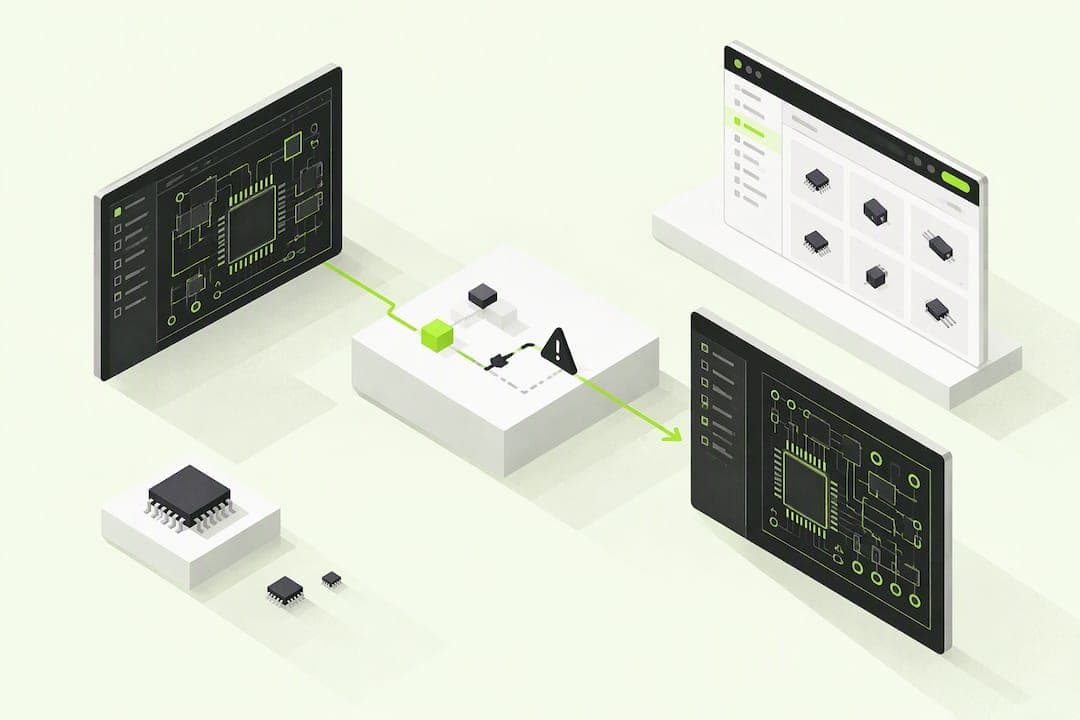
Yes, you can move an Altium project into KiCad, and for most boards the native importer gets you most of the way there. Start with KiCad's own Altium importer for schematics and PCBs, fall back to converter scripts for stubborn files, then run a full DRC pass to catch the clearance, pad and net issues that import leaves behind.
TL;DR:
- Back up the full project folder and gather linked libraries and STEP models first; missing paths can leave symbols or footprints unresolved.
- Import the schematic before the board, verify every sheet, and use altium2kicad when unusual stackups, polygon pours, or legacy features defeat KiCad’s native importer.
- After import, check layer mapping, units, origin, and stackup; measure a known part against its datasheet to catch scale or coordinate shifts.
- Rebuild netclasses and compare netlists because Altium’s scoped rules and bus aliases can change; run ERC, DRC, refill zones, and inspect Gerbers before release.
Table of Contents
- Pre-migration checklist: files, backups, and environment
- Detailed conversion workflow: schematic first, then PCB, libraries, and project cleanup
- Layer mapping, units, coordinate systems and stackup checks
- How to handle footprints and library exports safely
- Design-rule translation, netclasses, and the critical post-import checks
- Known importer errors and practical fixes you can apply now
- Converter projects, plugins, and small automation scripts
- Handling embedded 3D STEP models and mechanical verification
- Final verification steps before Gerber and BOM outputs
- How Circuit Center helps after you migrate (viewer, BOM, thermal checks)
- How we handle schematic symbol conversion and library mapping
- Preserving design intent and net connectivity during conversion
- Managing multi-sheet schematics and hierarchical designs
- Dealing with complex components and legacy Altium features
- Post-conversion PCB layout adjustments specific to KiCad
- Updating your BOM after import in KiCad
- Author's hands-on takeaways and recommended priorities
- Try Circuit Center's viewer and BOM tool once your project imports
- FAQ
- Sources
Pre-migration checklist: files, backups, and environment
Before you open anything in KiCad, gather every file the project touches. Altium projects reference more than the obvious .PcbDoc and .SchDoc files, and a missing library or model is the most common cause of a half-finished import.
- Collect .PcbDoc, .SchDoc, .PcbLib, .SchLib, and .IntLib files, plus the project file and any linked 3D step models.
- Make a full backup of the original Altium project before you touch anything, including the folder structure that holds your library search paths.
- Install a current KiCad release, and check whether the latest importer fixes live only in a nightly or testing build if you hit a parser error on a recent Altium file version.
- Decide upfront whether you will rely on KiCad's native importer, the altium2kicad Perl scripts, or both, since complex multi-board projects often need the second option for parts the native importer skips.
Altium stores its native design files as Microsoft Compound File Binary containers, and KiCad's importer reads them with a compound file parser rather than a plain text parser. That matters because any file that is slightly corrupted or saved from an unusual Altium version can trip up the reader in ways that look like random import failures but are really structural file problems. Opening the original file in Altium one last time to confirm it loads cleanly, before you ever hand it to KiCad, saves a lot of debugging later.
Write down your library search paths too. Altium's path-based component linking is one of the first things that breaks silently during conversion, and knowing where your original libraries lived helps you track down footprints or symbols that KiCad fails to resolve on the first pass.
Detailed conversion workflow: schematic first, then PCB, libraries, and project cleanup
Work in a fixed order: schematic, then board, then libraries, then project settings. Jumping straight to the PCB usually means re-doing work once you discover a symbol or net problem that originated upstream in the schematic.
- Import the .SchDoc file directly in KiCad if your version supports schematic import; if it does not, generate a flattened netlist in Altium or run the altium2kicad
convertschema.plscript to produce a KiCad-readable schematic. - Open the resulting schematic and check that every sheet loaded, since multi-sheet projects sometimes drop a sheet reference silently.
- Import the .PcbDoc into Pcbnew using KiCad's Altium board importer; for boards with unusual stackups, polygon pours, or non-standard pad shapes, run the altium2kicad
convertpcb.plscript instead and compare the two results. - Immediately check layer mapping and units: open board setup and confirm the stackup, then zoom to the board outline and confirm nothing is offset or scaled wrong.
- Export every imported footprint into a new, clean KiCad footprint library, fixing any footprint name that still carries a long Altium directory path before the export runs.
- Open the project settings and confirm that Altium project parameters and special strings came across as KiCad project text variables, since KiCad protects its own reserved variable names and will silently skip a conflicting parameter according to the KiCad documentation.
The footprint export step trips up more people than any other part of this workflow. KiCad's exporter can fail outright when a footprint name includes a full Windows-style path inherited from the original Altium library location, because the exporter tries to recreate that directory structure on your filesystem. Stripping the name down to the final token before exporting avoids the error entirely, and it is worth doing this cleanup pass before you export rather than after you discover the failure.
Project parameters deserve a second look too. Altium's special strings, things like revision numbers or document titles, map onto KiCad's project text variable system, but only when the name does not collide with something KiCad already reserves. If a title block field looks blank or wrong after import, check whether the original parameter name matched a built-in KiCad variable and got skipped rather than overwritten.
Pro Tip: Run the native KiCad importer and the altium2kicad script on the same board and diff the two outputs; disagreements between them usually point straight at the part of the design that needs manual attention.
For boards with heavy design rule usage, inner planes, or large numbers of library-linked parts, budget real time for this phase. A simple two-layer board with a handful of parts might convert cleanly in minutes. A six-layer board with custom rules, split planes and a large BOM will need several passes through steps 3 through 6 before it is trustworthy enough to move on to design rule checking.
Layer mapping, units, coordinate systems and stackup checks
Layer mapping is where most visible import damage shows up first, because a layer that lands in the wrong place makes the board look broken even when the underlying geometry imported correctly.
- Top and bottom copper, silkscreen, paste and soldermask layers generally map one to one between Altium and KiCad, but inner plane layers and mechanical layers need a manual check against the original Altium layer stack.
- Confirm units immediately: a coordinate system or scale mismatch often shows up as footprints that look correct individually but sit in the wrong place relative to the board outline or each other.
- Check the origin point. Altium and KiCad do not always agree on where (0,0) sits on a given board, and a shifted origin can make an otherwise perfect import look like a disaster until you catch the offset.
- If the Altium source used a modern layer stackup with defined dielectric properties, open board setup after import and verify that KiCad picked up the dielectric and loss values rather than defaulting to generic stackup entries.
Mechanical layers are the easiest thing to lose track of because they rarely cause an obvious visual error, they just quietly stop lining up with your enclosure or panel outline. If your board depends on mechanical layer data for fab notes, courtyard outlines or keepouts, check each mechanical layer against the Altium original rather than assuming the importer carried the mapping correctly.
A quick sanity check that catches most layer and scale problems in under a minute: select a part you know the physical dimensions of, measure it in KiCad, and compare that to the datasheet.
How to handle footprints and library exports safely
Exported footprint names sometimes carry the full Altium library directory path baked into the filename, and that long string is what breaks KiCad's library exporter on many boards.
- Open the footprint in a text editor first and look at the raw name string before you try to export it, since the path prefix is often visible as plain text.
- Strip the directory path down to the final descriptive token, rename the footprint to something readable and project-specific, then re-attempt the export.
- Build one canonical KiCad footprint library per migrated project rather than leaving footprints embedded inside the board file, since embedded footprints make the next export or edit cycle repeat the same path problem.
- Keep a simple naming convention (part type, package, pin count) so a footprint pulled from a migrated project reads the same way as one you created natively in KiCad.
This matters beyond just getting past an export error. A clean canonical library saves you from re-doing this cleanup work on the next board that shares parts with the one you just converted, and it means a colleague who picks up the project later is not stuck untangling an Altium path string just to find the right footprint.
Pro Tip: Batch-rename footprints with a short script before exporting rather than fixing them one at a time inside KiCad's footprint editor, it is faster and less error-prone on a board with more than a handful of parts.
Design-rule translation, netclasses, and the critical post-import checks
Altium keeps a lot of its design intent in proprietary rule objects rather than in simple global settings, and that is the biggest reason design rules rarely survive conversion untouched.
- Altium's preferred track width, clearance and other constraints often live in scoped rules rather than global board settings, and KiCad's importer maps the common fields but can change how priority and scope get applied, according to KiCad's documentation.
- Run a full DRC pass as soon as the board loads. Most import problems, including zero-size pads, incorrect clearances and net mismatches, surface as DRC errors faster than they show up through visual inspection.
- Rebuild your netclasses explicitly in KiCad rather than trusting that Altium's rule scoping carried over exactly, especially on boards that used layered or conditional rules for specific net groups.
- Check bus and net naming carefully. Altium's bus naming conventions and net aliasing do not always translate directly, and a renamed or split net can quietly break a connection that looked fine on the schematic.
KiCad's own import test suite documents specific checks for copper zone clearances and pad mounting styles, which gives you a sense of what the importer is actually verifying under the hood versus what it leaves for you to confirm manually. If a zone clearance looks suspicious after import, it is worth comparing it against the original Altium rule rather than assuming KiCad's default applies.
Net naming conflicts deserve particular attention on boards converted from older Altium projects, where bus naming shortcuts were common. A bus member that Altium resolved contextually might import as a disconnected net in KiCad, so a careful read of the netlist after DRC, not just the DRC error count, catches problems that a clean DRC pass can still miss.
Known importer errors and practical fixes you can apply now
A handful of errors show up repeatedly across converted boards, and each one has a known, reproducible fix.
- Zero-sized or phantom pads: community reports on the KiCad forums describe through-hole pads created at 0mm during import, and the practical fix is a short Python script that opens the .kicad_pcb text file, finds and removes the offending pad entries, then re-saves.
- SMD pads imported as through-hole pads: inspect the pad type field for affected pads, correct the mounting style, and regenerate copper zones afterward since the pour will not reflect the corrected pad shape until you re-run it.
- Footprint export errors from long path strings: rename the footprint to strip the embedded directory path, and if you are fixing many footprints at once, a batch text-replace across the library file is faster than editing each one in the footprint editor.
- Bus and net conflicts: compare the imported netlist against the original schematic net by net for any bus that used Altium-specific naming shortcuts, and manually reconnect anything that split or merged incorrectly.
Pro Tip: Keep a short script that strips zero-size pads and normalizes pad types ready to run against any new .kicad_pcb file, since these two errors show up on nearly every Altium-to-KiCad conversion.
Editing a .kicad_pcb file directly with a script is safe as long as you work on a copy and reopen the result in KiCad before trusting it, since the file format is plain text and a malformed edit will simply fail to parse rather than silently corrupt your board.
Converter projects, plugins, and small automation scripts
Three tools cover most of what you need: KiCad's native importer, the altium2kicad script set, and small custom scripts for repairs the first two leave behind.
- altium2kicad is a Perl-based converter that unpacks Altium files and runs them through separate schematic and PCB conversion scripts,
unpack.pl,convertschema.pl, andconvertpcb.pl, and its documentation lists known gaps around DRC settings, Bezier curves, octagonal pads, and STEP or 3D model handling. - KiCad's native Altium importer is preferable for most modern boards since it is maintained alongside KiCad itself, and ongoing GitLab merge request work shows the parser receiving incremental fixes to pad shapes, coordinates and internal unit handling over time.
- When a specific error is reproducible across multiple boards, a short Python or text script against the .kicad_pcb file is often faster than waiting on an importer fix, particularly for pad cleanup and name normalization.
Run both the native importer and altium2kicad on a board that uses older Altium curve types or octagonal pads, since each tool handles those edge cases differently and comparing the two outputs often reveals which one preserved the geometry correctly.
Handling embedded 3D STEP models and mechanical verification
Converting embedded STEP models for KiCad's 3D viewer usually means routing them through FreeCAD or a dedicated step-to-WRL tool, since KiCad's viewer reads VRML natively. Arc geometry and some curve types can distort during that conversion, so a visual check in the 3D viewer after import is worth the few minutes it takes.
Check mechanical fit directly in KiCad's 3D viewer rather than trusting the import blindly, watching specifically for scale mismatches that would not show up in a 2D layer check. When a converted model looks wrong, re-exporting from the original CAD source or substituting the vendor's own STEP file is usually faster than troubleshooting the conversion further.
Final verification steps before Gerber and BOM outputs
Treat the migrated project as unverified until it passes the same checks you would run on a board designed natively in KiCad.
- Run ERC on the schematic and DRC on the board, and resolve every error rather than suppressing warnings you have not actually investigated.
- Re-run copper pours and confirm zones fill correctly, since a pad or clearance fix made earlier can leave stale zone data behind.
- Generate Gerbers and open them in a Gerber viewer separate from KiCad, checking layer order and alignment against the original Altium output if you still have it.
- Export the BOM from KiCad and validate every footprint reference against actual supplier parts rather than assuming the imported part numbers are current.
This last step catches more surprises than people expect. A part that was in stock when the original Altium BOM was built may be obsolete by the time you finish a migration, and a BOM-pricing tool that checks current distributor stock against your exported list is a faster way to find that out than contacting a distributor line by line.
How Circuit Center helps after you migrate (viewer, BOM, thermal checks)
Once a migrated project passes DRC, you can inspect and price it in a single workspace.
- Open the migrated KiCad project in our Circuit Designer to inspect the schematic, board, a 3D view, and a priced BOM, all in the browser, without installing desktop KiCad on a second machine.
- Feed the KiCad BOM export into our BOM tool to match each line to distributor listings and price the build at your quantity.
- Run a quick thermal map on the migrated board to spot hotspots before you commit to a prototype run, and use parts for pickup to find a nearby supplier if needed.
How we handle schematic symbol conversion and library mapping
Schematic symbols rarely map one to one between Altium and KiCad, since the two tools store pin numbering, graphic styles and part metadata differently inside each symbol definition. When a symbol imports with pins swapped or a reference designator missing, the fix is almost always in the original Altium symbol library rather than in the imported KiCad file, so checking the source symbol first saves a round of guesswork.
Build a mapping habit rather than fixing symbols one at a time: as you resolve each symbol issue, save the corrected version into your canonical KiCad symbol library so the next project that shares a part does not repeat the same fix. For parts with complex graphic representations, like multi-gate logic or connectors with unusual pin spacing, a manual rebuild in KiCad's symbol editor is often faster and more reliable than coaxing the importer into matching Altium's internal representation exactly.
Keep the schematic and the library in sync as you go. A symbol you fix inside the schematic file itself, rather than in the library, will not propagate to other sheets or future boards that reference the same part, so always push the correction back to the library copy before moving to the next sheet.
Preserving design intent and net connectivity during conversion
The real risk during conversion is not a visual glitch, it is a net that silently reconnects to the wrong pin or disappears entirely. Compare the imported netlist against the original Altium netlist net by net rather than relying on a visual board comparison, since a misrouted trace can look fine while actually connecting to the wrong net.
Pay close attention to any net that relied on Altium-specific naming shortcuts, bus definitions or port connections across sheets, since those are the constructs most likely to lose their original meaning during conversion. Document any net you rename or restructure during cleanup, since a future revision of the board depends on that history matching the original design intent rather than an arbitrary new label.
Run ERC early, even before the board import, since a schematic-level net problem will propagate into every PCB import attempt you make afterward and is far easier to fix at the schematic stage.
Managing multi-sheet schematics and hierarchical designs
Hierarchical and multi-sheet Altium projects need extra care because each sheet references ports and nets that have to resolve correctly across the whole hierarchy, not just within a single page. Import or convert each sheet individually when possible, then check that cross-sheet connections resolved correctly before assuming the whole hierarchy imported cleanly.
A project with nested hierarchical blocks is more likely to need the altium2kicad script path than the native importer, since complex sheet hierarchies are one of the areas where converter tools diverge most in how they handle structure. After conversion, open the hierarchical sheet symbols in KiCad and confirm that each one points to the correct underlying schematic file rather than a duplicate or renamed copy created during the conversion process.
Keep your sheet naming consistent through the whole project. A sheet that gets renamed during conversion can break hierarchical references in ways that are not obvious until you try to generate a netlist from the full hierarchy rather than a single sheet.
Dealing with complex components and legacy Altium features
Some Altium features do not have a direct KiCad equivalent, and the practical answer is usually to rebuild the affected part rather than wait for the importer to handle it. Multi-part components with unusual gate arrangements, parameterized footprints tied to Altium-specific variant logic, and some legacy curve types in old PCB libraries fall into this category.
Documented converter limitations include Bezier curves and octagonal pads, which altium2kicad's own documentation flags as incompletely supported, so a board that leans on either of those is a candidate for manual rebuild rather than repeated conversion attempts. For parts with legacy variant logic built into the original Altium library, it is usually faster to recreate the part as a clean KiCad symbol and footprint pair than to chase down how the variant data mapped during import.
When a component genuinely has no practical KiCad equivalent, treat it as a one-time library build rather than a conversion problem: create the symbol and footprint once, verify it against the datasheet, and add it to your canonical library so it never needs to be converted again.
Post-conversion PCB layout adjustments specific to KiCad
Even a clean import usually needs layout adjustments that are specific to how KiCad handles certain board elements differently from Altium. Copper zone priorities and fill order can behave differently after import, so re-running zone fills and visually checking priority order on boards with multiple overlapping planes is worth doing before you trust the pour.
Courtyard and keepout areas, if your Altium board defined them, sometimes need to be rebuilt as native KiCad rule areas rather than relying on whatever the importer mapped them to. Check footprint courtyards against the 3D view, since a courtyard that imported at the wrong scale or layer will not always show up as a DRC error.
Silkscreen and assembly layer text frequently need repositioning after import, since text anchor points and rotation handling differ enough between the two tools that labels can end up overlapping pads or shifted off their intended location. This is cosmetic rather than functional, so fix it after the DRC and netlist checks are clean rather than before.
Updating your BOM after import in KiCad
The BOM you had in Altium is not the BOM you should trust after conversion, since footprint changes, renamed parts, and library consolidation during migration all affect what KiCad's BOM exporter actually reports. Re-export the BOM from KiCad once the board passes DRC rather than carrying the original Altium BOM forward unchanged.
Check that every line item still references a valid footprint and symbol pairing, since a part that got rebuilt during the symbol or footprint cleanup earlier in the migration needs its BOM entry to reflect the new reference rather than the old Altium part number. Reconcile reference designators too, since a reordered or renumbered schematic can shift designators in ways that make the new BOM diverge from your old purchasing records.
Once the exported BOM is clean, validating it against current distributor stock and pricing is the next practical step, since the parts that were available when the original Altium board was designed are not guaranteed to still be in stock or at the same price by the time you finish a migration.

Author's hands-on takeaways and recommended priorities
Fix function before you fix appearance. A board with perfect silkscreen and a broken net is worse than one with ugly text and clean connectivity, so chase DRC and netlist issues first and leave cosmetic layout cleanup for last.
Automate the repairs you will do more than once. The zero-size pad fix and the long-path footprint rename are common enough that a saved script beats a manual edit every time, and documenting each fix as you make it turns a one-off repair into a reusable playbook for the next board. A small canonical library, built once and reused, is worth more than the time it takes to set up.
— Matthew
Try Circuit Center's viewer and BOM tool once your project imports
Once your migrated KiCad project is clean, we give you a way to check it and price it without opening a separate tool for each step. Our Circuit Designer opens a KiCad project directly in your browser, schematic, board, a 3D view built from KiCad's own part models, and a BOM, so you can confirm a migration looks right without installing desktop software on another machine.

- Open the migrated project in our viewer to check schematic, board, and 3D geometry in one place.
- Export your KiCad BOM and bring it into our BOM tool to match every line against real distributor listings and price the build at your quantity.
- Use parts for pickup to find a nearby supplier if a reworked part needs to arrive today instead of next week.
Members get autosave and version history on saved designs, along with BOMs they can reprice at any time, from $10 a month. Visit Circuit Center to search parts, price a BOM, or open your next migrated project.
FAQ
Can KiCad import Altium files directly without a converter?
Yes, for most recent Altium projects. KiCad's native importer reads .PcbDoc, .SchDoc, .PcbLib, .SchLib and .IntLib files directly, though complex boards with legacy curve types or heavy variant logic often need a converter like altium2kicad for the parts the native importer skips.
Why do footprints fail to export after an Altium import?
Exported footprint names sometimes carry a long directory path inherited from the original Altium library location, and KiCad's exporter can fail trying to recreate that path structure. Stripping the name down to a short descriptive token before exporting resolves the error.
What causes zero-size or phantom pads after conversion?
Community reports on the KiCad forums describe through-hole pads created at 0mm during import, often where a surface-mount pad should have landed instead. The practical fix is a short script that removes the offending pad entries from the .kicad_pcb text file before you reopen the board.
Do Altium design rules carry over to KiCad after import?
Many common rules map across, but Altium stores a lot of rule data as scoped, proprietary metadata that KiCad's importer reinterprets rather than copies exactly, according to KiCad's documentation. Running a full DRC immediately after import is the fastest way to catch any rule, clearance or netclass mismatch that resulted from the translation.
Sources
- Summary technical reference for Altium Designer file formats as parsed by the KiCad importer
- altium2kicad