
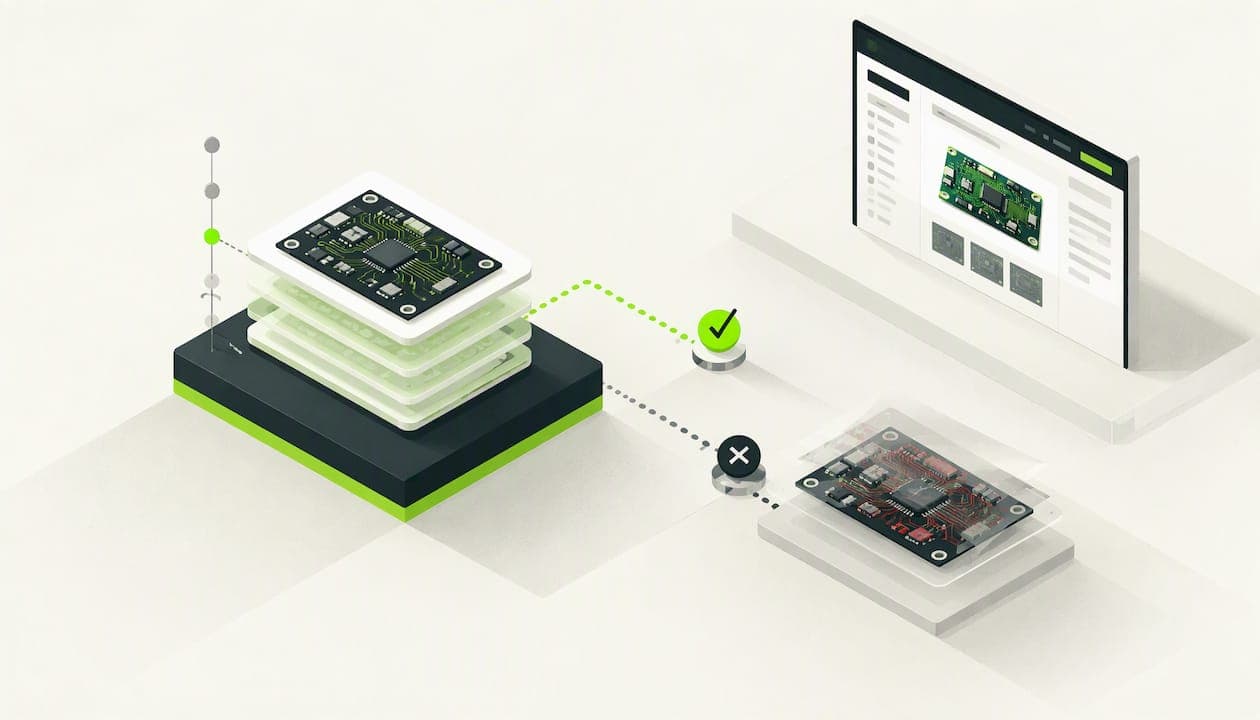
Yes, you can use Git with KiCad, and the Project Manager has built-in tools for it. Treat Git as a history and snapshot tool, not a merging platform, because in-file merges of schematics and boards are unreliable. Commit small and describe each change, tag every production release, and vendor your libraries into the repo. Watch the .history folder: it can carry its own repository and usually belongs in .gitignore.
TL;DR:
- When a change touches both a schematic and board, commit them together; single file commits can leave the repository showing mismatched design states.
- Git can merge edits to separate hierarchical sheet files, but simultaneous changes to the same schematic or board file can create invalid connectivity or references.
- Vendor symbol and footprint libraries in the repository so collaborators use identical component definitions, and ignore .history unless you deliberately track its embedded repository.
- Generate Gerbers and the bill of materials only from committed release states, then tag the exact commit so manufacturing can trace production to its design.
Table of Contents
- How does KiCad's built-in Git integration work?
- Why does merging fail for KiCad files?
- How should you lay out a KiCad repository?
- What does a good day-to-day workflow look like?
- How do teams collaborate without constant conflicts?
- What do you do when version control misbehaves?
- Which tools extend hardware version control?
- Our take: a short team policy you can copy
- Where does Circuit Center fit alongside Git?
- FAQ
- Sources
How does KiCad's built-in Git integration work?
KiCad's Project Manager has had Git support built in since version 10, and the official documentation lists exactly what it offers. You can do most day-to-day Git work without leaving the window where your project lives. Here is what each action does:
- Initialize repository: turns an existing project folder into a Git repo, so you can start tracking history on a project you already have.
- Clone from remote: pulls a project from a hosted repository (GitHub, GitLab, Bitbucket or your own server) and opens it as a KiCad project.
- Commit Project: stages and commits every changed file in the project in one step.
- Commit File: commits only the file you selected, which is handy when you changed a schematic sheet and a footprint but want them in separate commits.
- Push and Pull: send your commits to the remote, or fetch and merge what others have pushed.
- Switch Branch: changes the working tree to another branch without opening a terminal.
- Disable Git Integration: stops KiCad from tracking the project. It does not delete the repository on disk.
The project tree also gives you feedback. Icons next to each file show whether it is tracked, unchanged or has uncommitted changes, and the active branch is displayed so you always know where your next commit will land. If an icon looks wrong, trust it as a first clue, then verify with git status in a terminal.
The difference between committing a file and committing the project matters more than it sounds. A commit of the whole project captures a consistent state: schematic, board, project file and libraries together. A single-file commit is useful for granular history, but it can leave the repo in a state where the schematic and the board disagree. When a change touches both, commit them together.
KiCad's Version Control preferences control how all this behaves. According to the KiCad docs, you can enable or disable tracking, set how often KiCad checks the remote for updates, and define a default commit author name and email. Set the author once so your history does not fill up with machine-generated identities, which makes later review much easier.
When the commit dialog opens, use it deliberately. Pick only the files that belong in this change, and write a message with context: what changed, which sheet or net it affects, and why. Practitioners note that descriptive, context-heavy commit messages and small commits are what make a design's history legible to a reviewer who was not there when the change was made. "Updated schematic" tells a future reader nothing. "Move 3.3 V regulator feedback divider to sheet power.kicad_sch, change R12 to 10 kΩ for lower quiescent current" tells them everything.
Pro Tip: Before you hit Commit, look at the file list in the dialog and uncheck anything you did not intend to change. Autosave and backup files sneak in more often than you would expect.
Why does merging fail for KiCad files?
KiCad's project files are plain text, so it is natural to assume Git can merge them like source code. In practice it cannot, at least not reliably. Forum discussion on the pros and cons of using a VCS with KiCad makes the point directly: CAD data is not mergeable the way code is, and when two people change the same schematic or PCB file, standard merge tools usually cannot produce a valid design.
The reason is structure. A source file is a list of mostly independent lines, and Git can often tell that changes to separate lines do not overlap. A schematic or board file is a dense graph of objects: symbols, wires, nets, footprints, tracks, zones. Each object carries coordinates, identifiers and references to other objects. Move one component and many lines change at once. Change a net name and the ripple touches every object attached to it. Two edits that look unrelated to a human can collide in the file, and a merge that "succeeds" textually can still leave a board with broken connectivity or duplicated references.
When Git does flag a conflict in one of these files, resolving it by hand is rarely realistic. You would be reading raw coordinates and UUIDs, deciding which version of an object to keep, and hoping you do not corrupt something that only shows up when you run the design rule check, or worse, after fabrication. The community guidance reflects this: teams value Git for a linear history and a permanent undo, and they avoid advanced merging in hardware work.
None of this means branching is useless. Merging works well when changes live in different files. A design split into hierarchical sheets stores each sheet in its own file, so two engineers working on separate sub-sheets touch different files, and Git combines them without any conflict inside a file.
Consider two scenarios:
- Different sub-sheets: one engineer reworks the power supply in
power.kicad_schwhile another edits the connector sheet inio.kicad_sch. Git sees two separate files with independent changes and merges them cleanly. The top-level sheet may need a quick look, but the heavy lifting is safe. - Same board file: both engineers move components and reroute tracks in the single
.kicad_pcb. Every change lands in one file, many lines overlap, and the merge either conflicts or silently produces something that no one designed.
The practical implications for your branching strategy are straightforward:
- Avoid simultaneous edits to the same schematic or board file.
- Prefer sequential workflows: one person finishes and pushes, the next pulls and continues.
- Split large designs into hierarchical sheets so work can proceed in parallel without sharing a file.
- Use Git for linear history, and use tags and releases for production snapshots.
- Keep experimental branches short and plan to either discard them or replace the main line with them, not merge them line by line.
The same forum thread notes that professionals use version control to create immutable snapshots and releases so manufacturing knows exactly which file set matches a physical production lot. That is the right mental model: Git is the record of what you built, not a tool for blending two people's edits.
How should you lay out a KiCad repository?
A clean layout prevents most of the pain people attribute to "Git and KiCad don't get along." The biggest wins come from three habits: vendoring your libraries, handling .history on purpose, and keeping generated clutter out of the repo.
Start with libraries. If your project points at global symbol and footprint libraries on your own machine, a collaborator with a different library version can open the same schematic and see different footprints. Moving away from global libraries by vendoring project-specific symbols and footprints into the repository means everyone works from the exact same component definitions. That pins your parts in time and stops library drift between workstations.
A layout that works well for most projects looks like this:
- Project root: the
.kicad_pro,.kicad_schand.kicad_pcbfiles, plus any hierarchical sub-sheets. Commit all of them. - vendor_libs/: your project's own symbol libraries, footprint libraries and 3D models. Commit this folder so component versions are locked.
- docs/: datasheets, design notes and review checklists. Commit these, but keep large binaries to a minimum.
- gerbers/ or fab/: fabrication output. Commit it only when it belongs to a tagged release, so each release folder is a reproducible record.
- README.md: a short file that says what the board is, which KiCad version it needs, and how to rebuild the release artifacts.
The .history folder deserves its own attention. According to a KiCad forum thread on the .history folder, KiCad 10 can create a .history folder to manage project snapshots, and that folder may contain its own embedded .git. If your project is also tracked by Git, you may see "adding embedded git repository" warnings, and Git may treat the folder like a submodule. The common fix is to add .history to your .gitignore if you do not want those backups inside the main repository. Track it only if you do so intentionally and understand the consequences.
Beyond .history, decide what to ignore and what to keep. Definitely commit your schematic and board files, the project file, vendored libraries and release tags. Usually ignore backup files, lock files, autosave copies, the fp-info-cache file, and local output you can regenerate at any time.
A starter .gitignore might include:
.history/
*-backups/
*.bak
*.lck
_autosave-*
fp-info-cache
Check the file names against what your own KiCad version generates, because backup and cache names have changed between releases.
Pro Tip: Run git status right after your first commit in a new repo. If you see dozens of untracked files you never meant to track, tighten the .gitignore now, before they get committed and become part of the history.
What does a good day-to-day workflow look like?
A good workflow is boring and repeatable. The goal is a history a reviewer can read and a set of tagged snapshots manufacturing can trust.
Start with commit granularity. Make small, frequent commits, each with a descriptive message. One logical change per commit is the target: "Add reverse polarity protection on VIN" is a good commit, while a commit that moves ten components, changes three nets and updates a footprint is hard to review and harder to undo. Small commits also give you precise rollback points. If a routing experiment goes wrong, you step back one commit instead of losing an afternoon.
Branching works best when you keep it short-lived. Use a feature branch for an experiment, like trying a different regulator or reworking a connector placement, then either fold the result back or throw the branch away. Avoid long-lived parallel branches that both edit the same schematic or board file, because that is exactly where merges turn into trouble. Merge only when the changes live in different files.
Tagging is where reproducibility comes from. When you generate Gerbers and a BOM for a production order, tag the exact commit you used. That tag becomes an immutable snapshot, so months later anyone can check out the tag and know they are looking at the design that was actually built. Practitioners favor this approach: enforced repository tagging is useful for creating production snapshots and reproducible Gerbers. Name tags so they carry meaning, such as rev-B-prototype-1 or v1.2-production.
Here is an example daily workflow you can adopt as is:
- Pull first. Open the project, run Pull from the Project Manager, and confirm no one else pushed changes that affect the file you are about to edit.
- Claim one scope. Work on a single sheet or a single vendor library at a time, and tell your team which one it is.
- Make a focused change. Edit, run electrical and design rule checks, and confirm the result before you commit.
- Commit selected files. Open the commit dialog, tick only the files that belong to this change, and write a message that explains what changed and why.
- Push. Send the commit to the remote so your work is backed up and visible to the team.
- Tag for release. When the design is ready to build, generate Gerbers and the BOM from the committed state, then tag that commit so the fabrication artifacts always trace back to a fixed snapshot.
A few habits make this flow stick. Never generate production files from uncommitted changes, since the outputs will not match anything in history. Commit before you switch branches. And write messages as if a stranger will read them later, because someone will.
How do teams collaborate without constant conflicts?
When more than one person edits the same design, the real question is how to stop two people from touching the same file at once. Git does not enforce that by default, so teams add process, or reach for a different tool.
Some practitioners use Subversion in production because it supports enforceable file locks that prevent multiple people from editing the same file at the same time. For a binary-like, hard-to-merge format, a lock is a simple and effective answer: if you hold the lock on the board file, no one else can change it until you release it. The tradeoff is a more centralized workflow and less flexibility than Git offers, so weigh it against how often your team collides.
If you stay with Git, a few process rules cover most of the risk:
- Pull before you work. Starting from the latest state removes the most common source of conflicts.
- Designate file ownership. Agree on who edits which sheet or the board file at a given time, and say so in chat or on a shared board.
- Split designs into hierarchical sheets. Smaller files mean fewer collisions and let people work in parallel.
- Require review for merges into release branches. A second pair of eyes before anything reaches the branch you build from catches mistakes that checks miss.
- Treat release tags as the single source for fabrication artifacts. Nobody orders boards from a working branch.
Automation can enforce part of this. A continuous integration job can take a tagged commit, generate the BOM and Gerbers, and fail the build if checks do not pass. Pair that with a release checklist and a required review, and you get fabrication outputs that always trace back to a known commit instead of someone's local machine. Even a simple script that runs on each tag and archives the outputs is a big step up from exporting files by hand.
Hosting adds its own considerations. Whichever service you use for the remote, set up the repository with access controls that match how sensitive the design is. Give contributors the minimum access they need, keep private designs in private repositories, and review who holds write access to the release branch. If your board contains proprietary circuitry, remember that anything you commit lives in the history permanently, so avoid pushing confidential files to a repository you do not fully control.
Large binary assets need care too. 3D models and Gerber exports can bloat a repository quickly. Keep only the files you truly need, commit fabrication output at release points rather than on every change, and consider Git LFS for heavy assets if your host supports it.
Longer term, it is reasonable to watch hardware-aware diff tools and sensor-backed workflows, which aim to make design changes visible without text-level merging. They are an investment rather than a quick fix, so adopt them only when the simpler process rules stop being enough.
What do you do when version control misbehaves?
Most problems fall into a handful of patterns, and each has a quick check before you try anything drastic.
- Status icons look wrong or show no changes. The icons in the project tree are a quick signal, but they can lag. Run
git statusin a terminal to see the real state. If a file shows no changes but your edits seem missing, confirm you saved the file in the editor, check that you opened the project from the folder you think you did, and look at whether you are on the branch you expect. - Embedded repository warnings. If Git says it is adding an embedded repository, the .history folder is the usual culprit, since KiCad 10 can place its own .git inside it. Add .history to .gitignore, then remove it from the index with
git rm -r --cached .historyso Git stops tracking it. Your local backups stay on disk. - Sync conflicts after a pull. Do not panic and do not force through a bad merge. Use
git reflogto find the commit you were on before the pull, and you can return to it. Compare the state against a tagged release, exported Gerbers or a saved BOM to confirm which version is correct before you decide how to proceed. - KiCad and an external Git client disagree. Re-check your Git configuration, confirm you are pointed at the correct remote, and verify the branch. Remember that disabling KiCad's integration only turns off the interface, and the history already on disk stays intact, so you can keep working from the command line or another client.
- A change vanished after a merge. If a merge touched the same file twice, an edit may have been dropped. Check the commit before the merge, compare it against the result, and restore the lost object from the earlier commit.
When a conflict appears inside a schematic or board file, the safest course is usually to abandon the merge, keep one person's version of the file, and have the other re-apply their changes by hand in the editor. That costs some time, but it produces a design that passed its checks, which a hand-edited conflict marker rarely does.
Pro Tip: Before a risky pull or merge, tag or branch your current commit. It takes seconds and gives you a clean point to return to if something goes wrong.
Which tools extend hardware version control?
Plain Git covers history and snapshots. A few tools and research prototypes go further, and they are worth knowing about as context rather than as recommendations.
- GitPLM: serves a parts database to KiCad through HTTP libraries and can automate release hooks and generate release artifacts, which ties component data and fabrication outputs to your commits.
- Benchlog: a project concept built around a canonical JSON data model, with camera and serial verification, so that changes to hardware become legible diffs instead of opaque file edits. See the Benchlog write-up on Devpost for the idea.
- KiCad Plugin and Content Manager: the built-in way to find and install plugins and content from inside KiCad.
- InteractiveHtmlBom: a plugin that produces a shareable interactive BOM page, useful as part of the artifacts you attach to a release.
A word of caution: tools like these can change how your team collaborates, from where parts data lives to how releases are produced. Try them in a staging repository first, and make sure everyone understands the new flow before it touches your production designs.
Our take: a short team policy you can copy
After looking at how these pieces fit together, here is the policy we would hand to a new team. It is short enough to pin above a desk and strict enough to prevent most disasters.
- Vendor symbol and footprint libraries in the repo, so every workstation uses identical parts.
- Add .history to .gitignore unless you deliberately track it.
- Pull before you start work, every time.
- Keep feature branches short and never let two people edit the same file in parallel.
- Write a descriptive commit message for every commit, with what changed and why.
- Tag every release, and generate fabrication files only from tagged commits.
Map that onto your process and it covers review, manufacturing and purchasing. Reviewers read a clean linear history. Manufacturing receives artifacts tied to a tag. Purchasing prices a BOM that comes from the same tagged commit. Nothing ships from a mystery state, which is the real source of risk, and a repeatable build is the reward for a little discipline.
— Matthew
Where does Circuit Center fit alongside Git?
We built Circuit Center to complement a Git-based workflow, not replace it. Keep Git as your canonical repository, then use our tools to review, share and price what you have tagged.

Our Circuit Designer opens a KiCad project right in the browser: schematic, board, a 3D view and a BOM priced from our catalog. Your design files stay in your browser unless you choose to save them to your account. Members get autosave and saved version history, which works nicely next to Git tags when you want a quick snapshot to look at or to share with a buyer.
Here is how teams use it together. Tag a commit in Git as your release, open that project in Circuit Designer, and price the BOM at your build quantity with our BOM tool. Send the share link to purchasing so procurement can review the priced list. Learn more about our component directory and sourcing tools and see how a single workspace can take you from tagged design to a priced, sourced board.

Open your next tagged release in the Circuit Designer and price the BOM before you place the order.
FAQ
What 3D format works best for KiCad?
KiCad uses STEP files for 3D models, and it also supports the VRML (WRL) format for rendering. A common approach is to keep the STEP file as the source model and use the WRL version for realistic colors in the 3D viewer. Keep these models inside your vendored library folder so they travel with the repo.
Is KiCad still free?
Yes, KiCad is free, open-source software. You can use it without paying a license fee, and the built-in Git tools in the Project Manager come as part of the application. You only pay for outside services you choose to add, such as hosting or fabrication.
Which is better, KiCad or OrCAD?
It depends on your team and budget. KiCad is free and open, with Git support built into the Project Manager, which suits small teams and makers. OrCAD is a commercial package, so the better choice is the one that fits your workflow, licensing needs and the tools your collaborators already use.
Should I commit the .history folder to Git?
Usually not. The folder can contain its own embedded repository, which causes "adding embedded git repository" warnings, as described in the KiCad forum. Add it to .gitignore unless you intentionally want those backups tracked.
Sources
- Docs
- Pros and cons of using a VCS (git etc.) with KiCad - FAQ - KiCad.info Forums
- Version Control for KiCAD PCB Projects | Michael Kafarowski
- benchlog | Devpost